
























My customers speak for me
IR-Alchemist X
Neural Synthesis Speaker Simulator
Explore the Experience ↓
Millions of Unique IRs. One Plugin.
IR-Alchemist X uses a proprietary AI Neural Network to generate an infinite variety of cabinet impulse responses in real time. No more scrolling through static IR packs – our neural synthesis engine creates unique tones on demand.
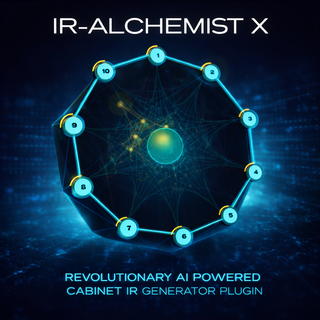
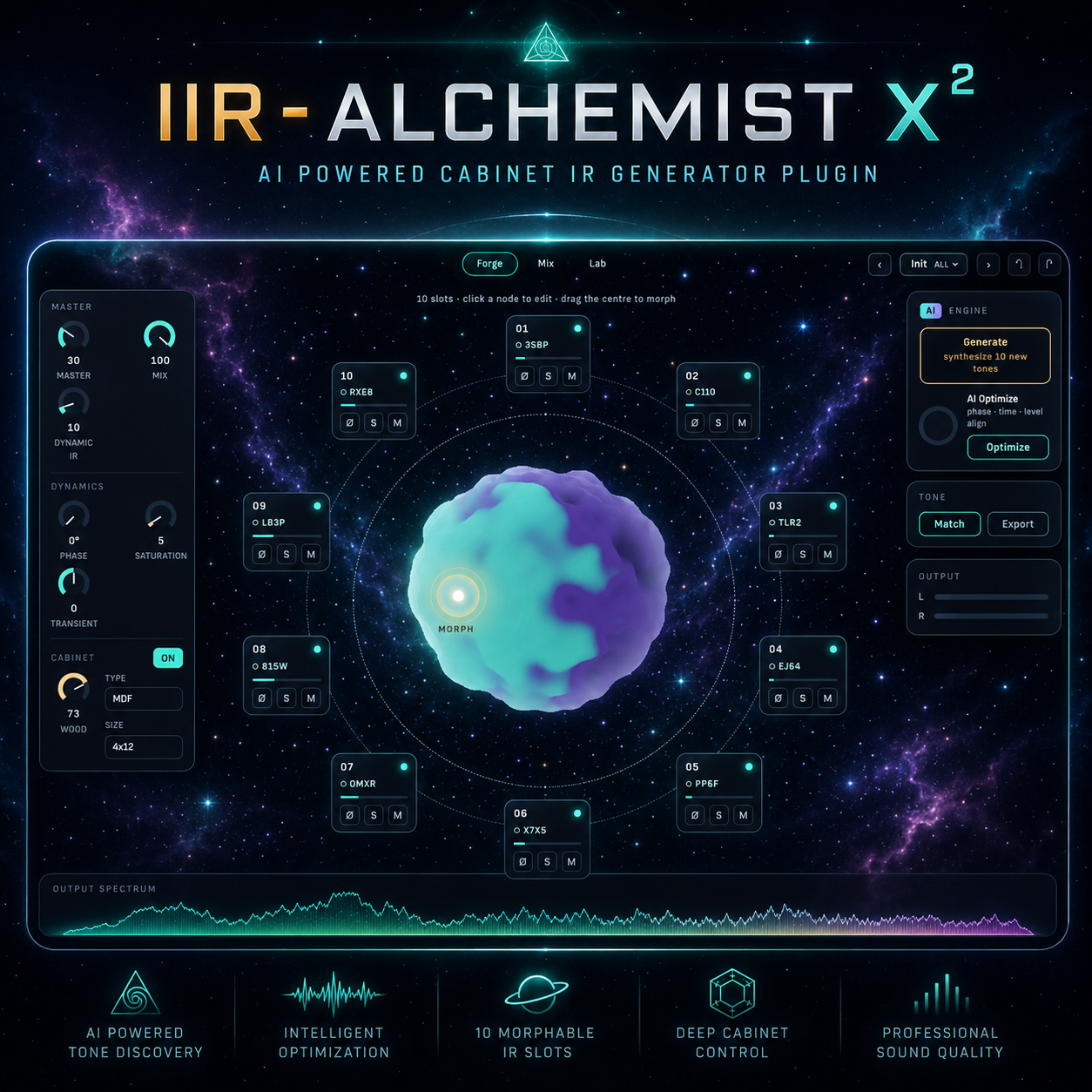
Load up to 10 AI-generated cabinets simultaneously and morph between them in a mesmerizing visual field. Hit the GENERATE button to instantly create 10 unique IRs – a completely new sonic palette with every click.
AI Optimize. Perfect Coherence.
Once you've generated your IRs, hit AI Optimize to let the neural engine analyze all 10 slots and automatically optimize them for maximum coherence.
- 🔄 Phase Correction – Detects and fixes inverted phase
- ⏱️ Transient Alignment – Aligns peaks for tight attack
- 📊 Volume Balancing – Normalizes RMS levels
- ⚡ Instant Results – Milliseconds to optimize
Match Any Guitar Sound.
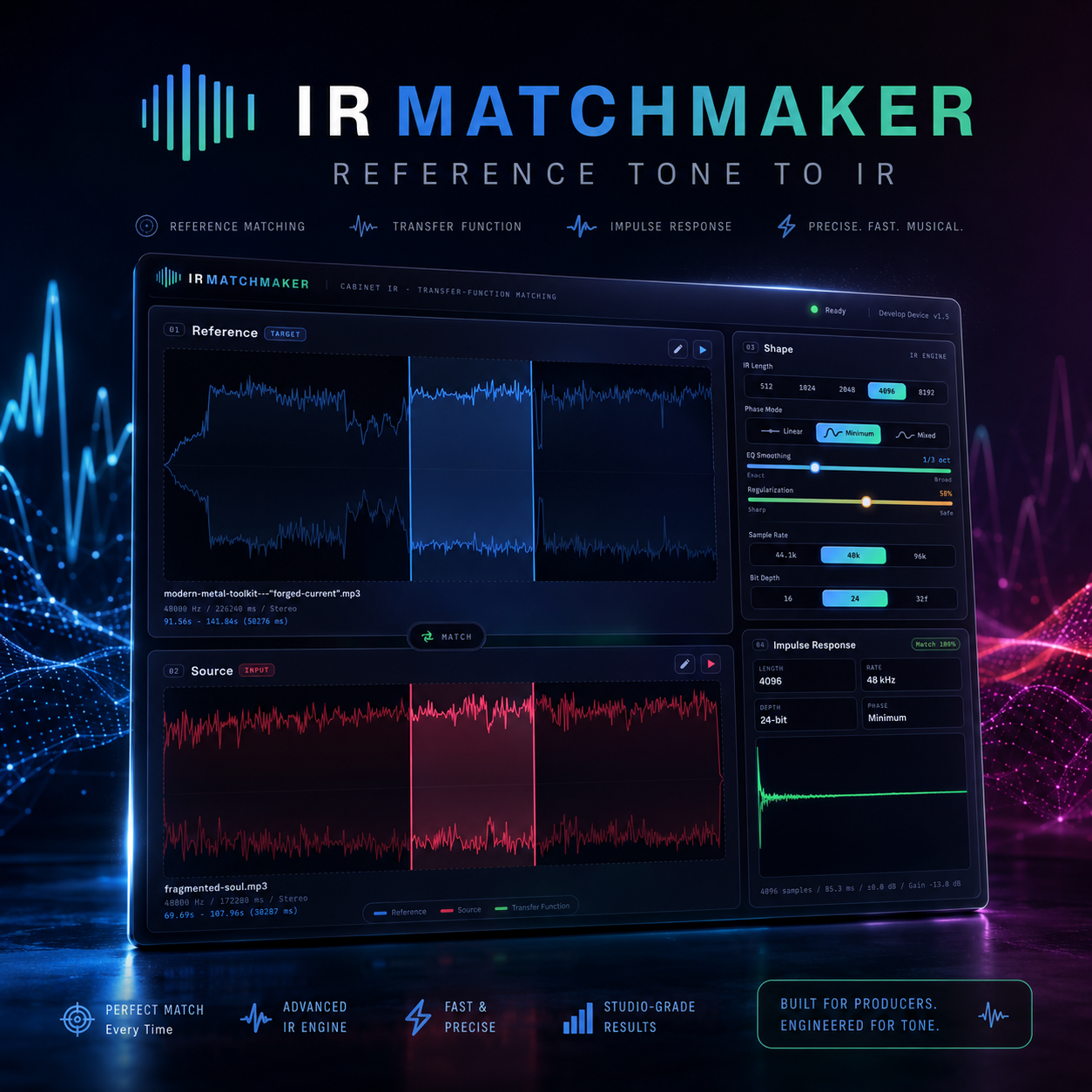
Hear a guitar sound you love on a record? AI Tone Match captures its complete frequency fingerprint. Import any recording as a reference – your favorite song, a producer track, any mix with the tone you want.
When you're happy – export it as a standard IR file and use it anywhere.
- 🎵 Reference Any Sound – Songs, producer references
- 📊 Real-Time Analysis – See the difference as you play
- 💾 Export as IR – Use in any amp modeler
Complete Post-Processing.
Each of the 10 slots has its own control panel. Adjust Volume, Pan, HPF/LPF, Phase, and more. Hit Re-Synth to regenerate any slot with a brand new IR.
- 🎚️ Per-Slot Controls – Volume, Pan, Filters
- 🔄 Re-Synthesis – New IR with one click
- 🎯 Phase & Time – Perfect alignment
Export. Use Anywhere.
Export your sound as a standard IR file (.wav). Works with Line 6 Helix, Kemper, Neural DSP, Fractal Audio, Strymon Iridium – anywhere.
Choose to export with or without Tone Match. What you hear is exactly what you get.
- 💾 Universal .WAV – Every IR loader
- 🎛️ With/Without Tone Match – Your choice
- 🎸 Works Everywhere – Hardware and software
IR-Alchemist X Live Demo
IR-Alchemist X: Revolutionary AI Powered Cabinet IR Generator Plugin
One-time purchase. Lifetime license. Free updates.
Technical Manual
Welcome to IR-Alchemist X
IR-Alchemist X is an AI-powered cabinet simulator that generates millions of unique impulse responses using neural synthesis technology. Unlike traditional IR loaders that play static samples, this plugin creates entirely new cabinet sounds in real time.
What You Can Do
- Generate unlimited cabinet IRs – Click GENERATE to create 10 unique IRs instantly.
- Morph between sounds – Blend up to 10 cabinets in real time using the visual morphing field.
- Match any guitar sound – Import a reference recording and clone its frequency character.
- Export as standard IR – Save your creation as a .WAV file for use in any amp modeler.
- Save and recall presets – Store your complete plugin state including Tone Match settings.
Installation
IR-Alchemist X is available as VST3 for Windows, and VST3 + AU for macOS.
Windows Installation
- Download the installer (.exe) from your purchase confirmation email.
- Double-click the installer and follow the wizard.
- The installer automatically installs Visual C++ Redistributable if needed.
- Restart your DAW and scan for new plugins.
- Plugin Location:
C:\Program Files\Common Files\VST3\ - Presets & Data:
%APPDATA%\Develop Device\IR-Alchemist X\
macOS Installation
- Download the DMG file from your purchase confirmation email.
- Double-click to mount the disk image.
- Drag the plugin files to the appropriate folders (shown below).
- Restart your DAW and scan for new plugins.
- VST3:
/Library/Audio/Plug-Ins/VST3/ - AU:
/Library/Audio/Plug-Ins/Components/ - Presets & Data:
~/Library/Application Support/Develop Device/IR-Alchemist X/
System Requirements
- Windows: Windows 10/11 (64-bit), any VST3 host
- macOS: macOS 10.15+ (Catalina), Intel or Apple Silicon, VST3 or AU host
- RAM: 4 GB minimum, 8 GB recommended
- CPU: Any modern multi-core processor
Quick Start Guide
Follow these steps to create your first custom cabinet sound in under 60 seconds:
Step 1: Generate IRs
Click the big GENERATE button at the bottom of the screen. This instantly fills all 10 slots with unique AI-generated cabinet impulse responses.
Step 2: Explore the Morphing Field
In the center of the screen you'll see a circular area with 10 nodes around the edge. Drag the central point anywhere in this field – the closer you move to a node, the more that cabinet's character dominates. You're blending up to 10 sounds in real time!
Step 3: Optimize (Optional)
Click AI OPTIMIZE to automatically align the phase, timing, and volume of all your slots for a cohesive mix. This is especially useful after generating a new set of IRs.
Step 4: Tweak Global Settings
Use the knobs on the sides to adjust master volume, add saturation, shape transients, and more. See the "Controls Reference" section for details on each knob.
Step 5: Save Your Work
Click the preset dropdown at the top and save your preset so you can recall it later. Your entire plugin state is saved, including Tone Match settings.
Step 6: Export as IR (Optional)
Click EXPORT to save your sound as a standard IR file (.wav) that works in any amp modeler or IR loader.
Controls Reference
Main Buttons
| GENERATE | Creates 10 unique AI-generated cabinet IRs instantly. Click multiple times to get different sets. |
| AI OPTIMIZE | Analyzes all loaded IRs and automatically corrects phase, aligns timing, and balances volumes for optimal coherence. |
| MATCH | Opens the Tone Match panel where you can import a reference audio file and match its frequency character. |
| EXPORT | Opens the Export dialog to save your current sound as a standard IR file (.wav). |
Left Side Knobs
| MASTER | Controls the overall output volume of the plugin. Turn it up if your sound is too quiet, down if it's clipping. |
| MIX | Blends between your dry (unprocessed) signal and the cabinet processed signal. 100% = full cabinet sound. 0% = bypassed. |
| DYNAMIC IR | Adds speaker "breathing" – the cabinet responds to your playing dynamics like a real speaker cone. Higher values = more reactive. |
Right Side Knobs
| PHASE | Rotates the phase of the entire signal from 0° to 180°. Use this to fix phase issues when combining with other tracks. |
| SATURATION | Adds analog-style warmth and compression. Low values add subtle harmonics, high values create tube-like breakup. |
| TRANSIENT | Shapes the attack of your sound. Positive values = punchier, more aggressive attack. Negative values = softer, smoother response. |
Cabinet Controls (Bottom Left)
| CABINET | Toggle to enable/disable the physical wood resonance simulation. |
| WOOD | Controls how much wood resonance character is added. Higher = more coloration. |
| WOOD TYPE | Select from 8 wood types: Birch, Pine, MDF, Mahogany, Maple, Plywood, Baltic Birch, Alder. Each has a unique frequency response. |
| Cabinet Size | Select from 8 cabinet sizes: 1x8, 1x10, 1x12, 2x10, 2x12, 4x10, 4x12, 8x10. Larger cabinets = more low end. |
Slot Detail Panel
Click any of the 10 slots around the morphing field to open its detail panel:
| Volume | Adjust this slot's volume relative to others (0% to 100%). |
| Pan | Position this slot in the stereo field (-100% Left to +100% Right). |
| HPF | High-Pass Filter – removes low frequencies. Range: 20Hz to 2kHz. |
| LPF | Low-Pass Filter – removes high frequencies. Range: 2kHz to 20kHz. |
| Time Offset | Delays this slot's signal. Range: -10ms to +10ms. Use for phase alignment. |
| Morph Blend | Controls how much this slot contributes to the morphing field. |
| Mute | Silences this slot completely. |
| Solo | Mutes all other slots, letting you hear only this one. |
| Phase Invert | Flips the phase of this slot by 180°. Use when combining multiple slots causes cancellation. |
| Re-Synth | Regenerates this slot's IR using the neural network – creates a brand new cabinet sound. |
Tone Matching
Tone Match lets you capture the frequency character of any guitar recording and apply it to your sound. The result can be exported as a standard IR file.
How It Works
- Click the MATCH button to open the Tone Match panel.
- Click Load Reference and select any audio file (WAV, MP3, etc.) containing the guitar sound you want to match.
- Use the waveform display to select the specific region you want to analyze.
- Click CAPTURE to start analysis. Play your guitar through the plugin while it captures both your output and the reference.
- The display shows the spectral difference between your sound and the reference in real time.
- Click APPLY to apply the matching EQ curve.
- Use the Intensity slider to blend between your original sound (0%) and the fully matched sound (100%).
Tips for Best Results
- Choose a reference section where the guitar is clearly audible (avoid parts with heavy drums or bass).
- Play something similar to the reference while capturing (same chord voicings, similar dynamics).
- Start with lower Intensity (50-70%) and increase if needed.
- The matched sound can be exported as an IR – your matched tone works anywhere!
Tone Match State in Presets
When you save a preset, your Tone Match settings (including the captured EQ curve, intensity, and reference spectrum) are saved along with everything else. When you load that preset, the Tone Match is restored exactly as you left it.
IR Export
Export your sound as a standard Impulse Response file that works in any amp modeler, IR loader, or DAW plugin.
Export Settings
| Sample Rate | 44100 Hz, 48000 Hz, or 96000 Hz. Use the sample rate your target device expects. |
| Bit Depth | 16-bit, 24-bit, or 32-bit float. 24-bit is standard for most devices. |
| IR Length | Length in samples. 2048 samples is standard for most amp modelers. |
| Include Tone Match | When enabled, the exported IR includes your Tone Match EQ curve. When disabled, exports only the cabinet response. |
| Normalize | Normalizes the IR to prevent clipping. Recommended to keep ON. |
What Gets Exported
The export engine captures your complete plugin state:
- All 10 IR slots and their individual settings (volume, pan, filters, phase)
- Current morphing position
- Cabinet resonance and wood type
- Tone Match EQ (if enabled)
- All post-processing (saturation, transient, phase rotation)
What you hear in the plugin is exactly what you get in the exported file.
Compatible Devices
Exported IRs work with: Line 6 Helix, Kemper Profiler, Neural DSP Quad Cortex, Fractal Audio Axe-FX, Boss IR-200, Strymon Iridium, Two Notes Torpedo, and any other device that loads .WAV IR files.
Presets & FAQ
Working with Presets
Presets store your complete plugin state, including:
- All 10 IR slots (which IRs are loaded)
- Morphing position
- All slot settings (volume, pan, filters, phase, mute, solo)
- Global settings (master, mix, saturation, transient, phase, dynamic IR)
- Cabinet settings (wood type, size, resonance amount)
- Tone Match state (reference spectrum, EQ curve, intensity, enabled/disabled)
Saving Presets
- Click the BROWSE button in the top-right corner.
- Click Save Preset.
- Enter a name for your preset.
- Click OK. Your preset is now saved.
Loading Presets
Use the dropdown menu at the top to select from your saved presets and factory presets. Use the arrow buttons to step through presets quickly.
Frequently Asked Questions
Why 10 slots?
Ten slots provide optimal variety for morphing while maintaining excellent CPU performance. You can create incredibly complex blended sounds that would be impossible with just 2-4 slots.
Is it really zero latency?
Yes. IR-Alchemist X reports 0 samples of latency to your DAW. The Tone Match uses a direct FIR time-domain engine, not FFT convolution, so there is no added delay.
Can I export without Tone Match?
Yes. In the Export dialog, simply disable "Include Tone Match" to export only the cabinet response without the matching EQ.
Do presets include Tone Match settings?
Yes. When you save a preset, everything is saved – including your Tone Match reference, EQ curve, and intensity setting. When you load that preset, the Tone Match is restored exactly.
What's the difference between GENERATE and AI OPTIMIZE?
GENERATE creates 10 brand new IRs from the neural network. AI OPTIMIZE analyzes your existing IRs and adjusts their phase, timing, and volume for optimal coherence.
Ready to Transform Your Tone?
Join thousands of guitarists using AI-powered cabinet simulation.
Get IR-Alchemist X →